Allowing zero price on products
If you are trying to sell an item at zero cost then this article will help with that.
1. First navigate to the products screen within general databases
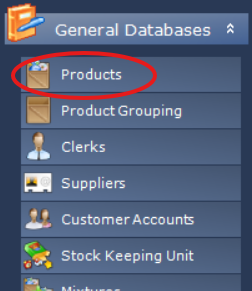
2. Then select the product you want to allow zero price
3. Then press general page and select POS options
4. Select General then set Zero Price Allowed to true
Related Articles
Zero Waste Price Embedded/Weight Embedded Items- Setup and Reader Rules.
Zero Waste Price Embedded/Weight Embedded Items- Setup and Reader Rules. This article is a guide to be used for those using Bizerba scales and want to know how to setup the weight embedded products to work with it, in a zero waste scenario. Included ...Updating Products within the Product Maintenance (Cost Price)
In Total Control Premier there is functionality to allow changes to each product within your database. With a site selected, if you select the “General Databases” tab and choose the “Products” applet, it will load every product for that site. Simply ...Adding \ Editing Products (How to Use)
Adding Products Summary A PLU (Price Look Up) record represents a product that is sold by the outlet and is at the heart of any PoS system. Most reports taken from GPoS are based on the sale of PLU’s. Unlike other systems, there is no upper limit on ...Product Maintenance Reports \ Product Price Listing (Help & Tips)
Product Maintenance Reports Some customers have asked for an example, where to find the Product Price List to print. If you go into General Database -> Select Products (screenshot 1.1). (Screenshot 1.1) This will open up the Product Maintenance tab ...Enabling/Disabling add missing products on HHT
These instructions will show you how to turn on/off adding products that don't exist on the HHT when scanned. 1. Login to the HHT with User ID 999 and Pin 999. 2. Click Files. 3. Click the 'Powered by Exela AutoID Solutions' text at the bottom to ...